


01Level Up Partner Admin access – Introduction
A “Partner Admin”(s) in LevelUp* (skillupwithlevelup.com) is responsible for monitoring learning progress, training participation, course completion, and overall program performance of the learners from their own partner organization, registered in LevelUp.
Partner Admin access is organization specific. A Partner Admin can view and analyze data belonging only to their assigned partner organization (all partner domains owned by the same MAICPP Partner One ID) and cannot access data from other partner organizations. Learn more about Partner ID at Partner Center.
Partner Admins have access to Personally Identifiable Information (PII) within the reports and dashboards available to their organization that includes names and email addresses of their organization's learners.
02Purpose of this guide
This guide provides instructions for Partner Admins on how to:
- Request Partner Admin reporting access.
- Monitor course enrolment, participation, and completion.
- Review learner-level activity and progress.
- Track Learning Journey progress and badges.
- Access learner-level PII where applicable.
- Download available report data in CSV format.
03Before you begin
Before you can access the Organizational reports on LevelUp please ensure:
- Your account is registered in LevelUp. If not already registered, complete the registration process here.
04Obtaining Partner Org Reporting Admin access in LevelUp
You can obtain Partner Org Reporting Admin access in LevelUp through the Microsoft-led Partner Admin nomination process detailed below:
Microsoft-led nomination
The following steps are taken by the Microsoft Skilling Lead/PDM/PSA/etc. attached to your partner account, to nominate an authorized person from your organization as a LevelUp Partner Admin in LevelUp for your organization:
- In this process, your organization’s assigned Skilling Lead/PDM/PSA/etc. or a designated Microsoft approver will nominate the Partner admin (by providing the name and email ID) of your organization’s approved LevelUp Partner Admin using a LevelUp Partner Admin Nomination Form (internal to Microsoft). See Appendix A for more details.
- Once submitted, you will receive an email notification from LevelUp informing you of this nomination and seeking your consent for the provisioning of this role on LevelUp.
- Once we receive your consent on the assignment of the Partner Admin role, the access will be granted and confirmed via an email.
05Access your Organizational Reports in LevelUp
Follow the steps below to access the organizational reports in LevelUp post approval:
- Login to LevelUp (skillupwithlevelup.com/login)
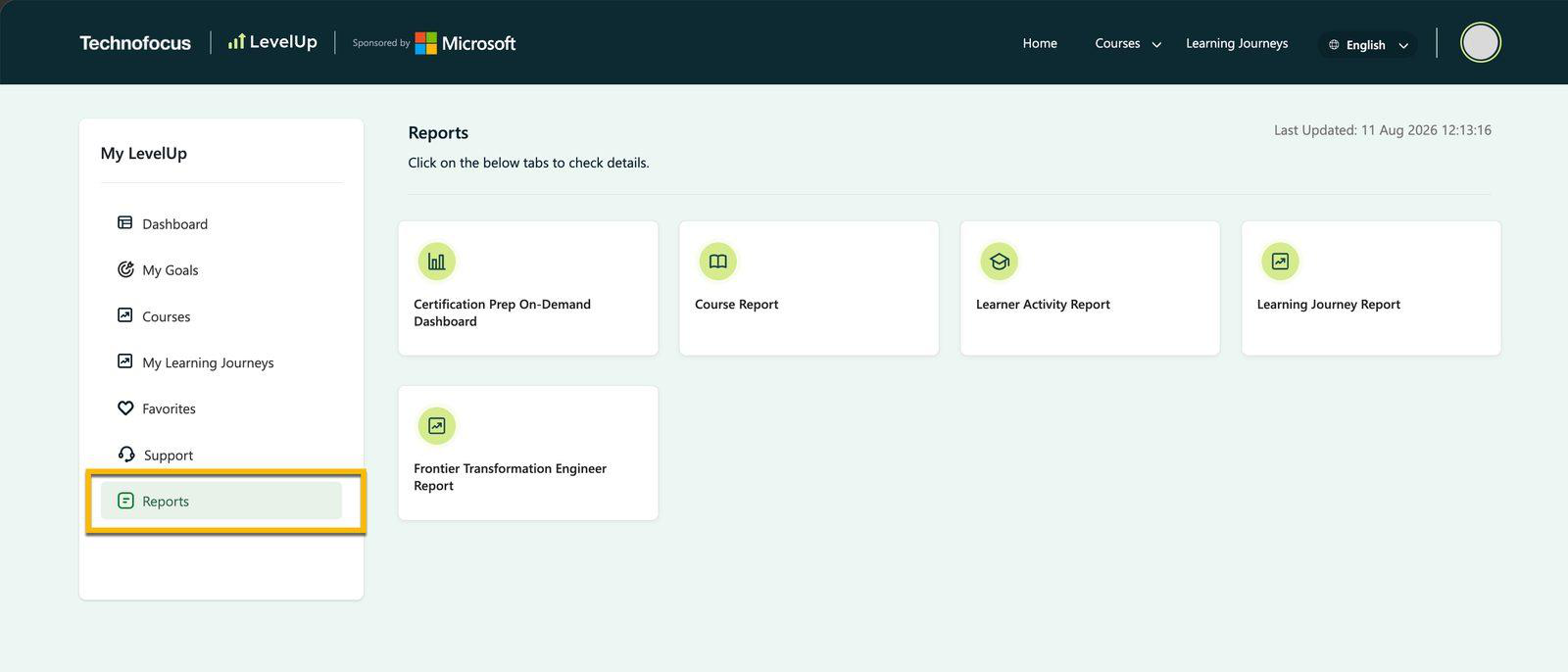
- On your Dashboard, in the left navigation menu, select Reports tab to open the reporting workspace. Click on a reporting tile of your choice to access the respective report for your organization:
06Types of reports available to Partner Admins on LevelUp
The Partner Admins can see the following types of reports in their LevelUp Dashboard > Reports page:
| Report Type | Access Scope |
|---|---|
| Course Activity Report | Own Organization |
| Learner Activity Report | Own Organization |
| Learning Journey Report | Own Organization |
| My Downloads | Own Organization |
| PII Visibility | Yes |
Other Program-specific Reports
As an Organization’s Partner Admin in LevelUp, you might see other reporting tiles that provide you access to program-specific reports, depending upon your organization’s participation in these programs. For example:
- Frontier Transformation Engineer
- Jumpstart
- Cert-Prep On demand, etc.
A program-specific report will be visible on your reporting dashboard if your organization’s learners (or your managed reseller partner learners in case of CSP partners) are enrolled in those programs.
Course Activity Report
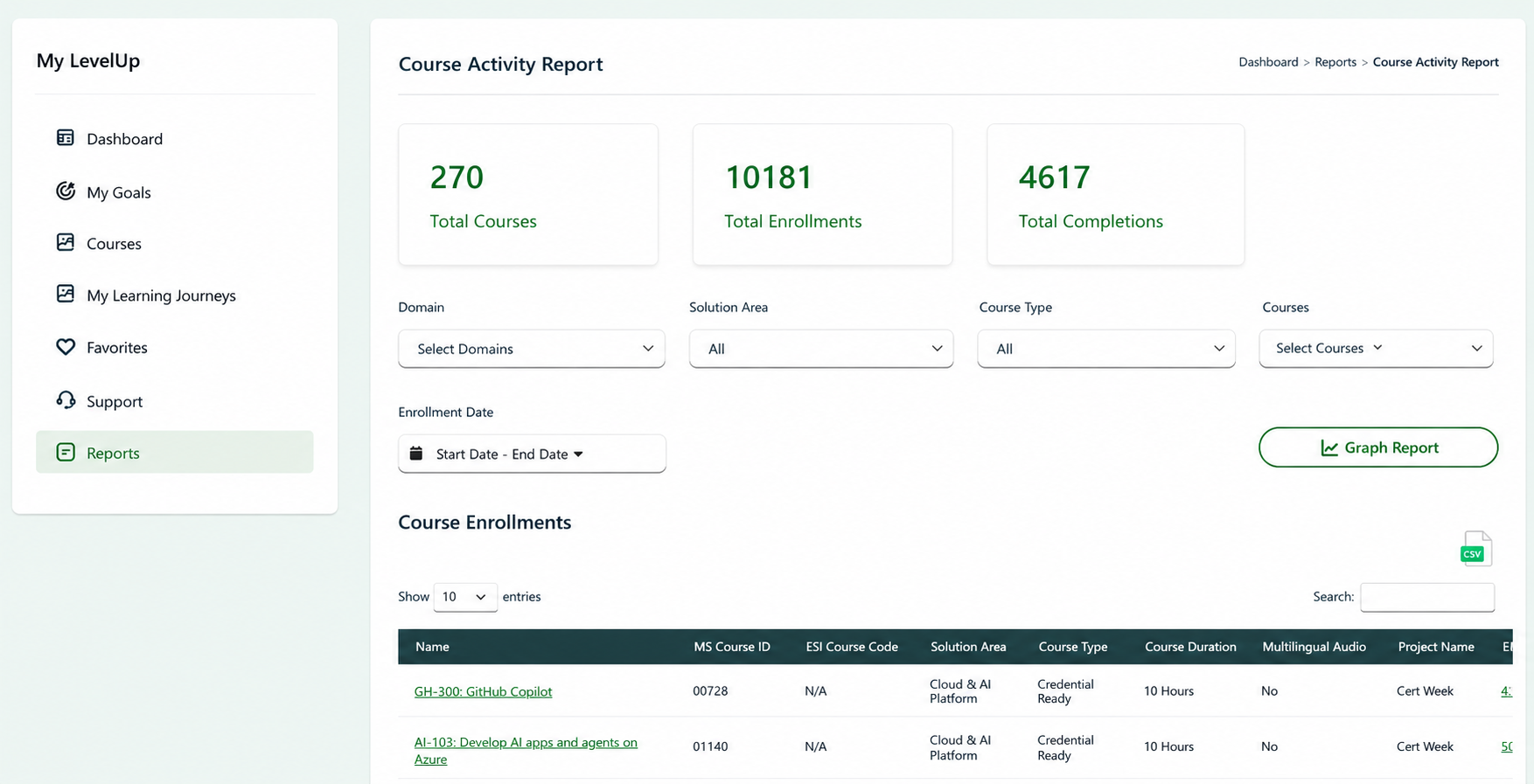
Here are the details made available in the Course Activity Report, scoped to your organization’s activity:
- At the top of the Course Activity Report page, three KPI tiles summarize organizational learning activity — Total Courses in which learners from your organization are enrolled, Total course enrollments from learners across all courses, and Total course completions. This gives admins an at-a-glance measure of reach and completion.
- Filter controls (Domain, Solution Area, Course Type, Course, and an Enrollment Date range) let admins slice the data.
- The Graph Report button produces a visual view.
- The Course Enrollments table lists each course by Name and MS Course ID, alongside its ESI Course Code (if assigned to a course by Microsoft), Solution Area, Course Type, Course Duration, Multilingual Audio availability in course video content, and Project Name (as assigned in LevelUp), with a CSV export facility for offline sharing.
- Each course title in the Course Enrollments table is a clickable hyperlink that allows admins to view more details on their enrolled learners within each course.
Learner Activity Report
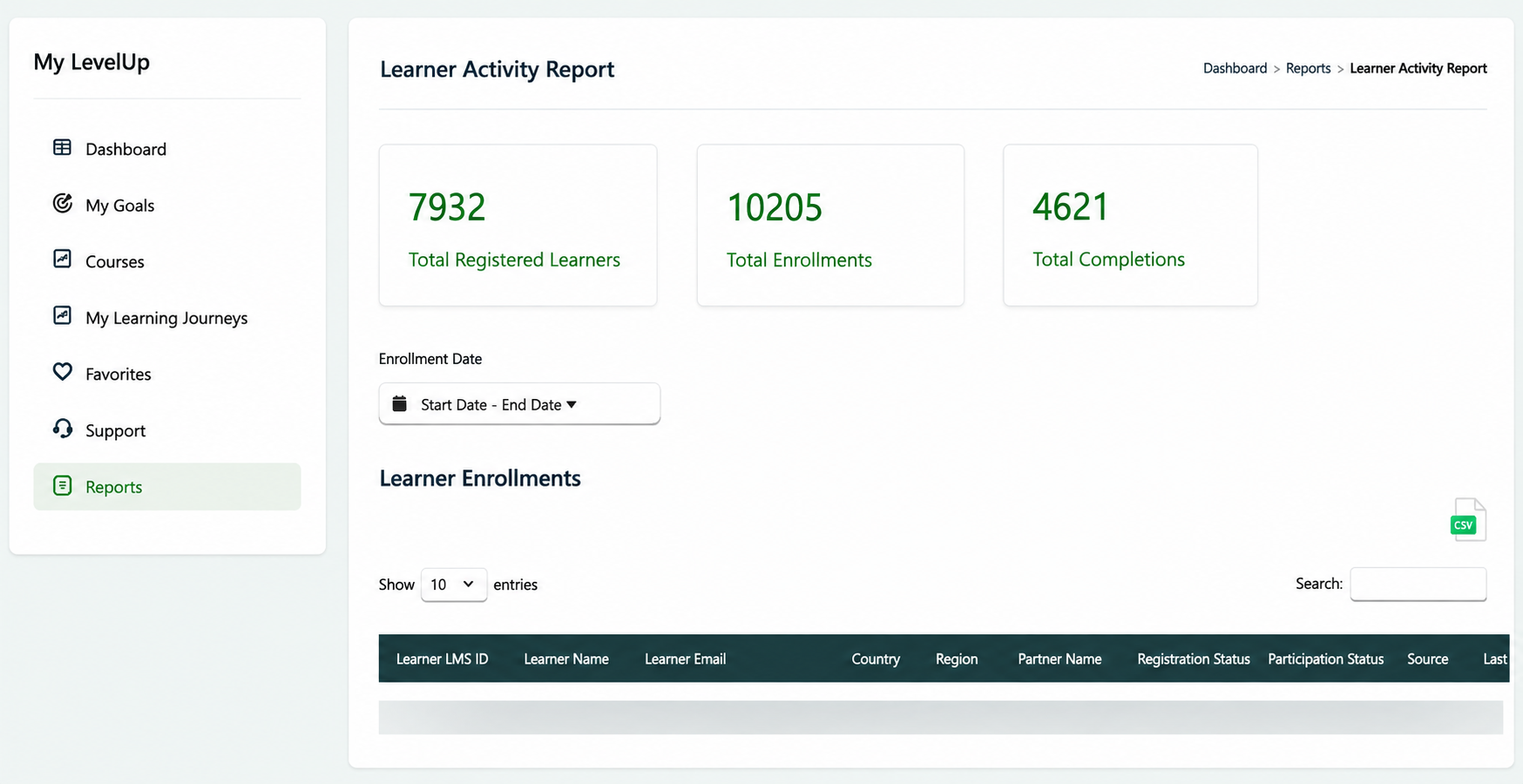
The Learner Activity Report answers “who is learning and how engaged are they?” at the partner organization level.
- The three KPI tiles — Total Registered Learners, Total Enrollments, and Total Completions — translate raw enrollment data into an engagement score, showing the depth of reach and the completion yield per learner.
- The Start Date – End Date picker limits the window of activity under review.
- The Learner Enrollments table beneath it breaks the totals down to the individual: each row identifies a learner by LMS ID, Name, Email, Country, Region, and Partner Name, and tags their Registration Status, Participation Status, Source, and Last Activity.
Together, the tiles and the row-level table let Partner Admins see both the headline picture and the people behind the numbers, with a CSV export for offline sharing and follow-up.
My Downloads
Sometimes, when you export the detailed data tables in reports to a CSV format file for offline access, the size of the export may be too large. In such cases, the platform may continue to perform this export job in the background, which is later provided as a downloadable file under the My Downloads section, available to view by clicking this tile.
07Learning Journey Report
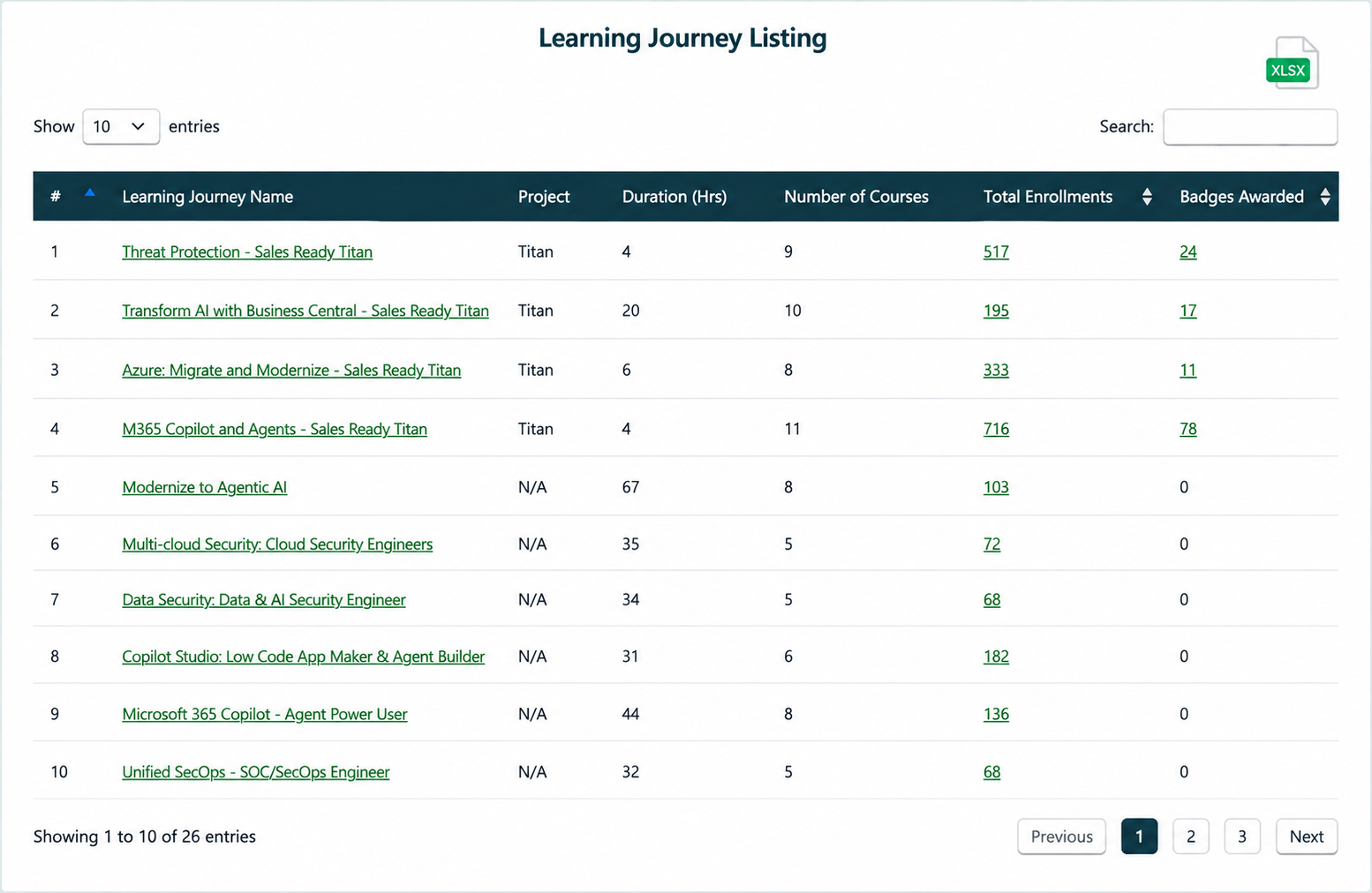
The Learning Journey Reports provide an overall view of learner progress across structured learning journeys.
You can view the report of a specific Learning Journey by navigating to your Dashboard > Reports > Learning Journey Report, then clicking the Learning Journey from the listed journeys in your list:
The report includes:
- Total Enrollments – total number of enrollments in the Journey.
- Total Completions – total learners who completed the journey.
- Learners currently in progress.
- Learners who have not yet started.
- Badges Awarded based on completions.
Partner Admins can monitor:
- Completion rates – the completion rate based on Completions vs Enrollments for their partner organization.
- Badge achievements – number of badges awarded based on completions.
- Learning progression – how many milestones the learner has completed.
Each Journey title in the Learning Journey listing table provides a clickable hyperlink to the detailed journey report page for that individual learning journey.
The section below provides more details on the journey details page for the Frontier Transformation Engineer – Titan learning journey as an example.
Frontier Transformation Engineer – Titan Learning Journey Report
The Frontier Transformation Engineer – Titan learning journey report can be accessed from your Dashboard > Reports > Frontier Transformation Engineer Report reporting tile as shown in the image below, or from your Dashboard > Reports > Learning Journey Report > Frontier Transformation Engineer – Titan.
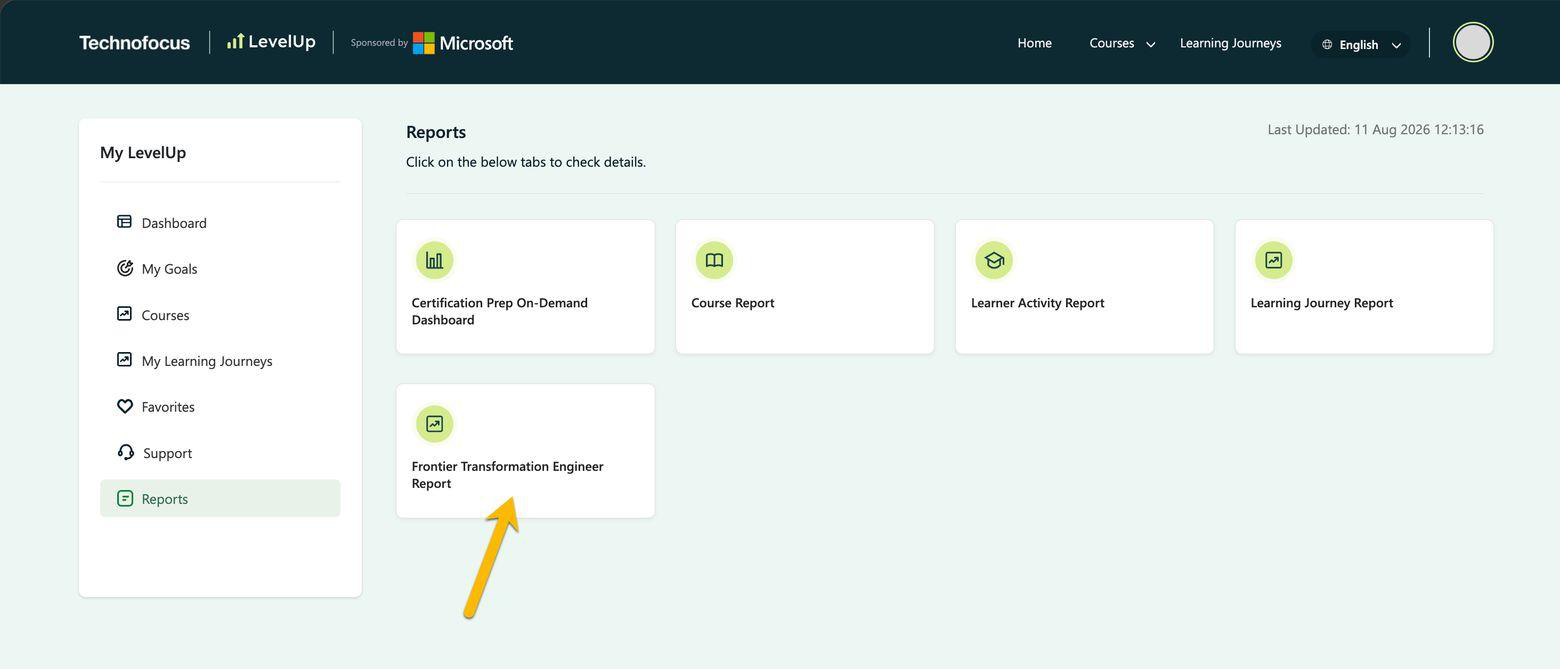
Bookmark link to the Titan Learning Journey report
You can also access the Frontier Transformation Engineer – Titan learning journey report by navigating directly to skillupwithlevelup.com/journey-report/35 after you sign in to LevelUp as the Partner Admin. Feel free to bookmark this page for ease of accessibility.
Titan report — KPIs and milestone summary
KPIs and milestone summary. The top of the Frontier Transformation Engineer – Titan journey page shows KPIs and a milestone summary. Built for the Titan journey (86 Hours, 11 Courses), this header establishes the journey context.
The “Filter by Partner Organization” dropdown scopes the report; partners see only their own organization’s learners here by default.
Six headline clickable KPI tiles give a one-glance health check: Total Enrollments, Not Started, In Progress, Completed, Completion Rate, and Badges Awarded. Clicking any KPI tile provides a filtered view of the graphical views and detailed table towards the end of the page.
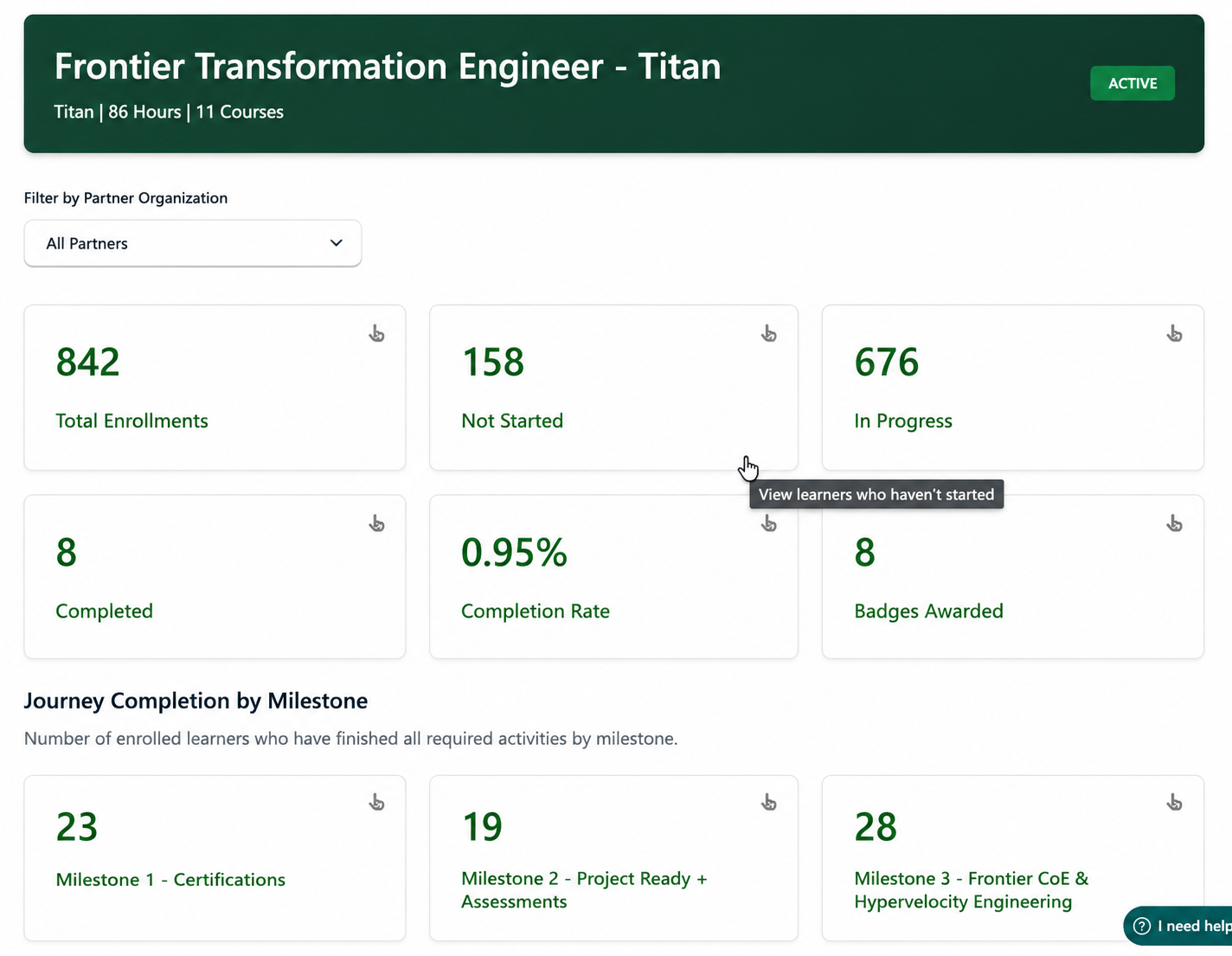
Journey Completion by Milestone
Beneath the KPIs, the Journey Completion by Milestone row reports how many enrolled learners have finished each required activity — Milestone 1, Milestone 2 and Milestone 3 — letting an admin see exactly where the cohort may be getting stuck along the journey.
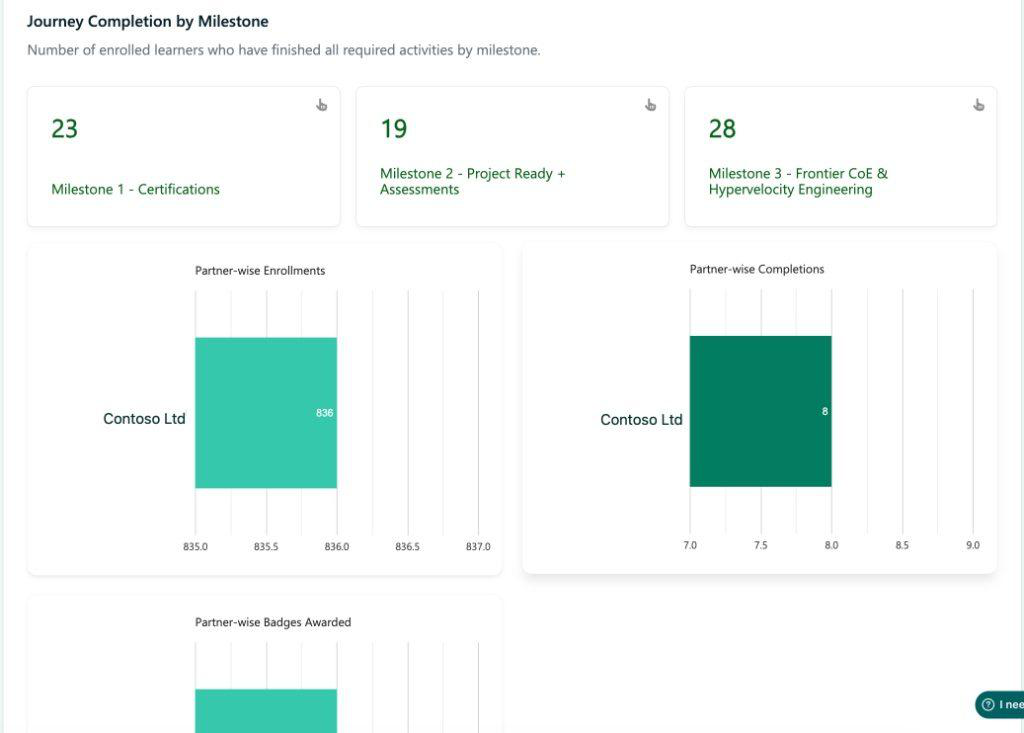
Partner-specific enrollments, completions and badges awarded
These three bar charts break the headline numbers down to your partner organization level so an admin can compare enrollments, completions and badges awarded side by side.
Together, the three charts make it easy to see the conversion of enrollment to completions.
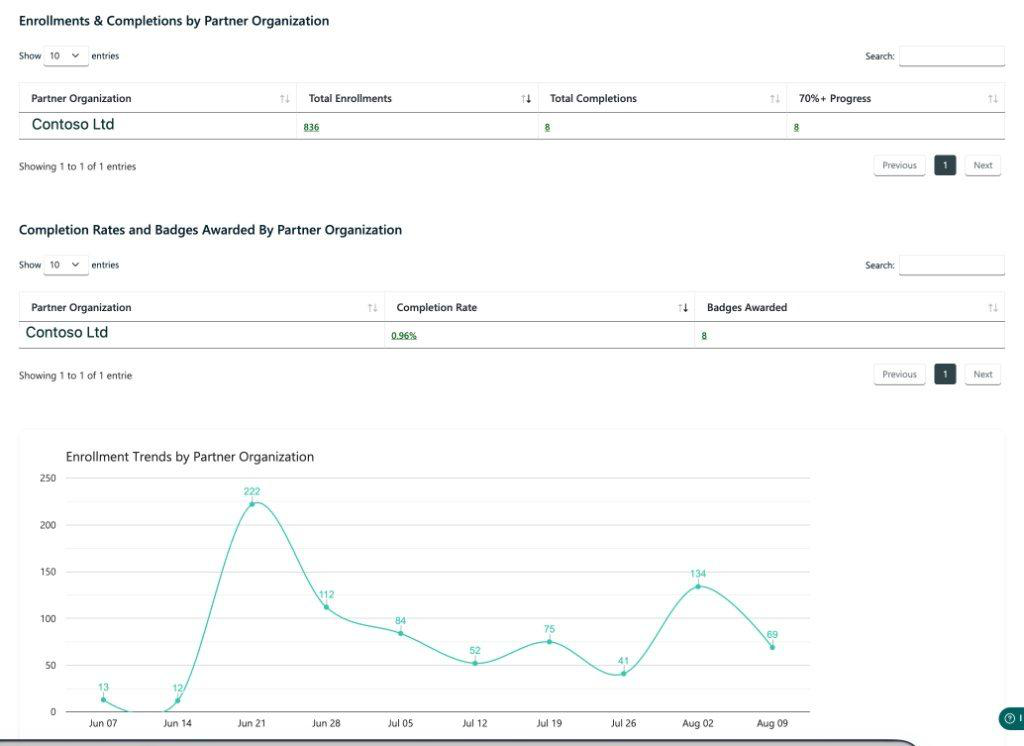
Enrollments, completions and trends
The Enrollments & Completions by Partner Organization table summarizes the headline activity for your organization: Total Learner Enrollments, Total Completions and Percentage Progress. A second table, Completion Rates and Badges Awarded, adds the rate and the badge count for direct comparison.
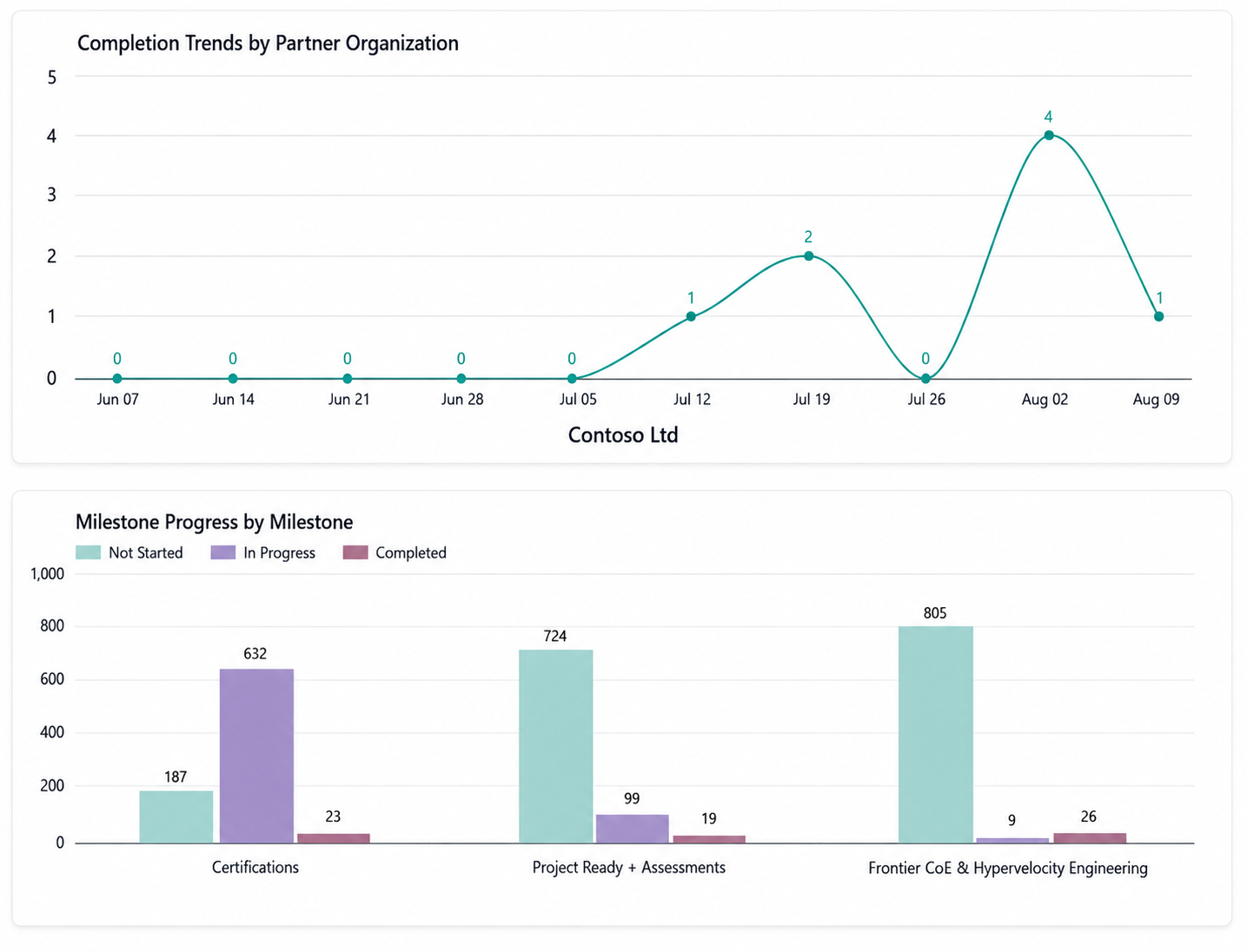
Below these, the Enrollment Trends line chart tracks new enrollments week-by-week from program start date to current date, revealing campaign effect, while a dip indicates a slowdown. Use this trio together to relate the totals to growth velocity.
The Completion Trends line chart complements the Enrollment Trends above. The grouped Milestone Progress bar chart is the operational view: for each milestone it shows Not Started, In Progress and Completed learner counts — Certifications (Milestone 1), Project Ready + Assessments (Milestone 2), Frontier CoE & Hypervelocity Engineering (Milestone 3).
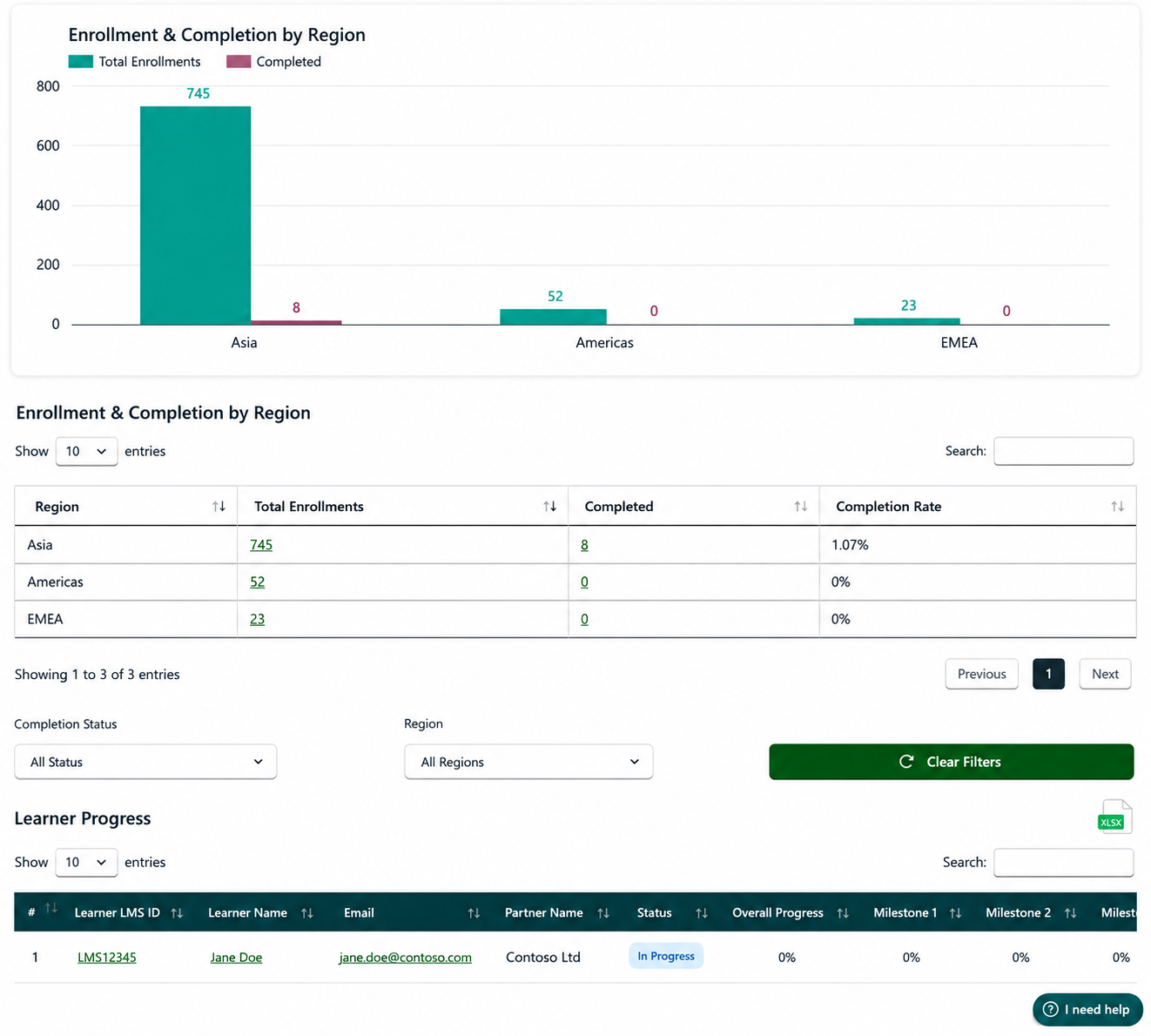
Enrollment & completion by region
This view pivots the same data along geography. The grouped bar chart and table show three regions — Asia, Americas and EMEA — and learner progress distribution by these regions.
Completion Status and Region dropdowns at the bottom let an admin refresh the cut, and the Clear Filters button resets the view. Use it to identify which regions need enablement support and which are ready for journey-completion celebrations.
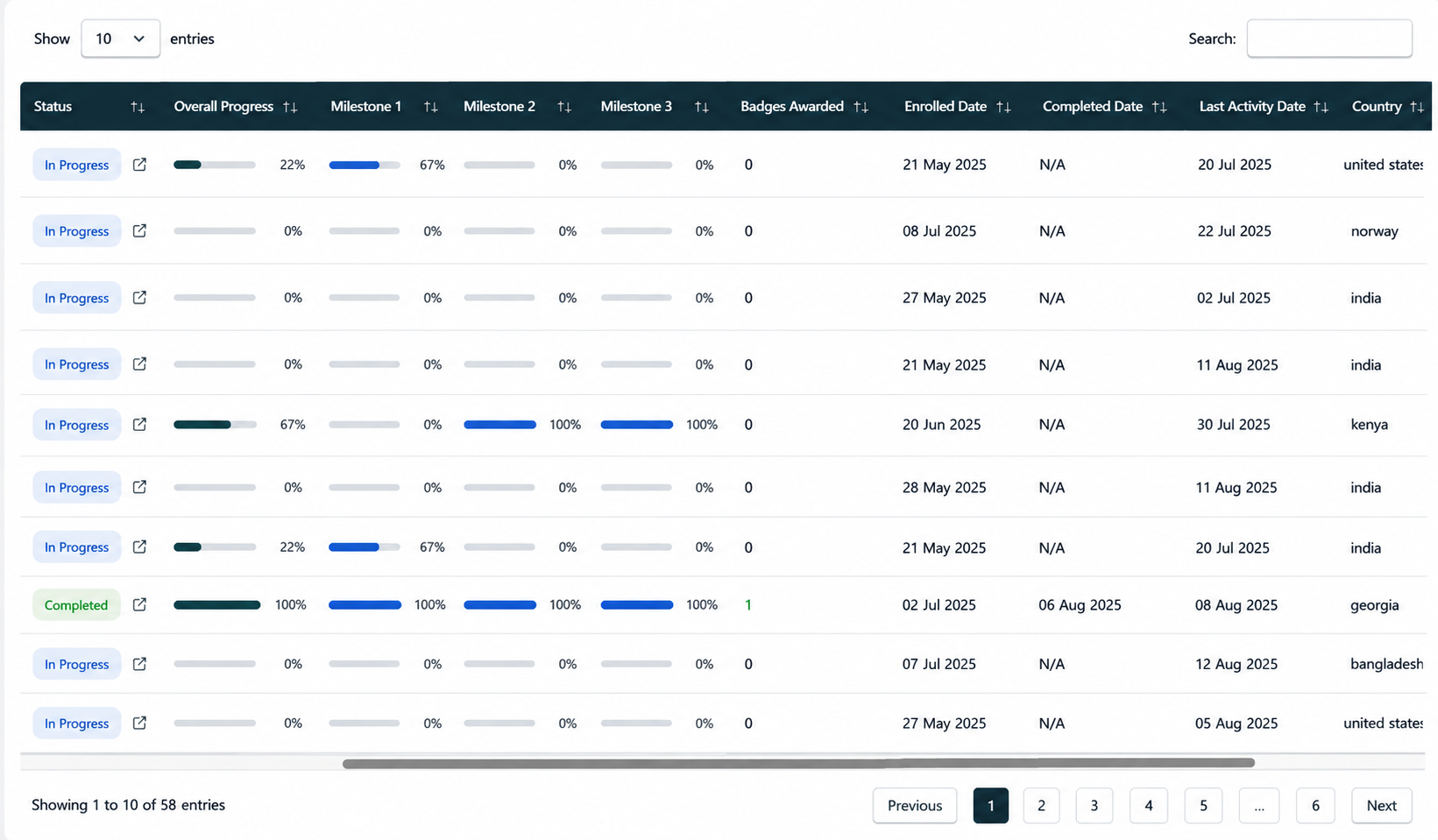
Learner Progress — individual learner detail
This is the row-level view that the aggregates roll up into. Columns: Learner’s ID, Name, Email, Org Name, Status, Overall Progress %, Milestone 1/2/3 progress %, Badges Awarded, Enrolled Date, Completed Date, Last Activity Date and Country.
The Sort option allows admins to toggle and prioritize by stalled learners or chase recent activity; pagination and a CSV export let admins move from spot checks to export-driven follow-up. Start Date, Completion Date and Last Activity date views allow admins to check and nudge enrolled learners to encourage them towards completion.
08Appendix A
Partner Admin Access Nomination Forms
Nomination forms
This form is used by the field representatives (Skilling Lead/PDM/PSA/etc.) to nominate a Partner Admin who will receive admin access to reporting capabilities, including learner-level PII, on behalf of your organization. Once this nomination is approved, the nominee receives a LevelUp notification requesting consent for assignment of the Partner Admin role. Access is provisioned only after the nominee provides consent, and the nominee receives confirmation once the role is enabled.
LevelUp Partner Admin Nomination FormThis path is for Microsoft field representatives to request LevelUp Admin access for themselves, to view aggregated, non-PII insights for their managed partner organizations. Requests submitted through this form are reviewed through the Microsoft-led approval process. Access should not be assumed until approval is completed, and provisioning confirmation is received. Access may be reviewed periodically and removed when the business need no longer exists.
LevelUp Microsoft Admin Access Request FormGovernance and privacy considerations
- Partner Admin access on LevelUp exposes learner-level personally identifiable information such as names and email addresses; nominations should only be submitted for Partner Admin access to be provided for a legitimate business need.
- Access should be aligned to the nominee’s partner organization (including all domains attached to the Partner One ID).
- Nominated users should already be registered in LevelUp with their business email address before access is provisioned.
- Submitted details should be accurate and complete to avoid approval or provisioning delays.
- The approval and provisioning process may take up to five business days, depending on review and nominee consent completion.
For additional questions/support
09FAQs
1. Who is a Partner Administrator (Partner Admin)?
A Partner Administrator (Partner Admin) is a partner-designated individual responsible for managing learner participation, monitoring progress, and tracking completion across their organization on the LevelUp platform.
2. Can I monitor learner progress?
Yes. Authorized administrators can view learner enrollment, progress, assessment status, and completion information.
3. Can I see certification completion status?
Yes. Certification completion evidence can be tracked through the admin portal. Certification updates are not immediate. Please allow up to 2–3 weeks after your enrollment and exam pass date for your certification to be recognized in our system.
4. Can I see assessment scores?
Authorized administrators can view assessment completion and pass/fail status along with the scores achieved.
5. How can I identify learners who are falling behind?
Admin reports help identify learners who have not started, are in progress, or are overdue. Use the journey report to review progress.
6. Can I export reports?
Yes. Reporting and export capabilities may be available depending on platform permissions and configuration.
7. How do I validate learner completion?
The platform automatically tracks required activities and identifies whether completion criteria have been met.
8. Can I see badge attainment across my organization?
Yes. Authorized administrators can track badge earners and overall completion rates in reports.
9. Can learners be assigned after the program has started?
Yes. New learners can generally be added at any point unless program-specific restrictions apply.
10. Can multiple administrators manage the same partner organization?
Yes. Multiple authorized administrators may be granted access based on organizational requirements.
11. How do I encourage learner completion?
Administrators can monitor progress, send reminders, and review completion reports to drive participation.
12. Can I view organization-wide completion metrics?
Yes, but only when you have the admin role enabled. Dashboards provide visibility into enrollments, completions, certifications, assessments, and badge attainment.
13. Is learner data visible outside my organization?
Learner data is only visible to authorized users within your organization and designated program administrators, based on platform permissions and access controls. Personally identifiable information (PII) is available for Partner Admins but not available for authorized internal Microsoft stakeholders; however, aggregated partner insights and summary reporting are accessible to them.
14. Can I track completion by team or business unit?
No. Organizational hierarchy data is not available; reporting will not support team-level or business-unit-level views.